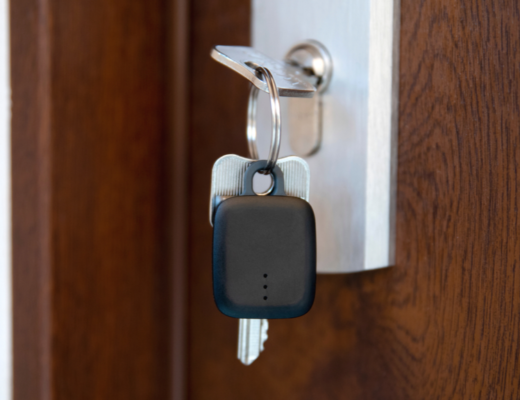
If you’re worried about setting up the notiOne app on your own and have no one to turn to for help, this guide is for you. In a few simple steps, we’ll explain how to start using the notiOne app and devices correctly. A properly configured notiOne app lets you keep a close eye on what matters most to you
The notiOne app – how to get started?
Depending on the brand of your phone, you may come across different operating systems that your smartphone runs on. The most popular ones, Android and iOS, support the notiOne app and the devices it works with. Your notiOne journey starts with downloading the free app from the app store
- Android – Google Play Store
- iOS – App Store
- Huawei – AppGallery
Create a free account in the notiOne app
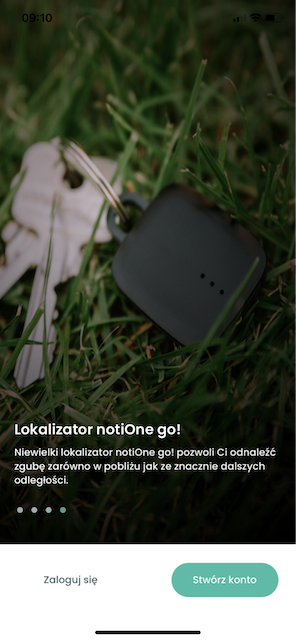
Open the downloaded app to see the login screen. You’ll see a welcome screen in the form of a slideshow and two buttons on the white bar at the bottom of the page:
- Log in – for users who already have an account in the app
- Create account – for users who haven’t set up an account in the app yet
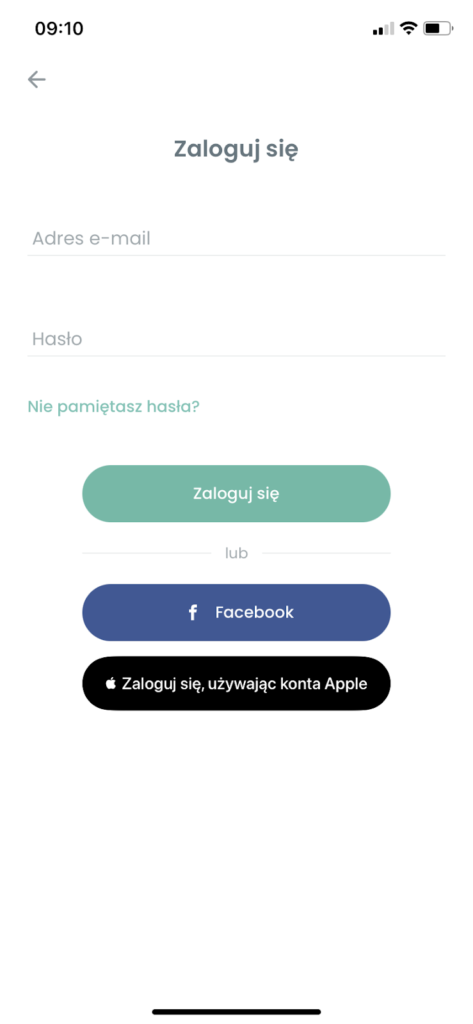
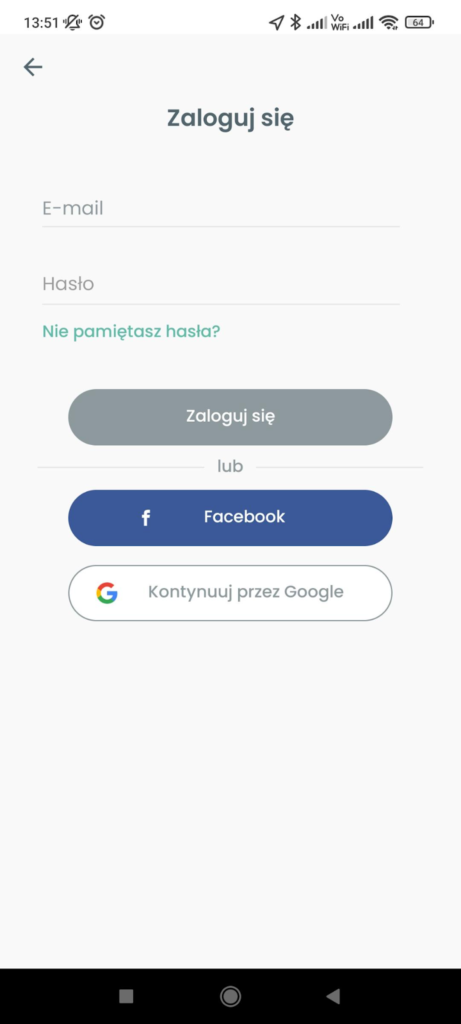
If you already have a notiOne account, you can log in to see the list of your notiOne devices. If you’re creating an account for the first time, tapping Create account lets you set up a new account by entering your e-mail address. You can also sign in automatically with Facebook, an Apple account or a Google account – this is the quickest and easiest way to log in to the app.
Before you add a notiOne tracker
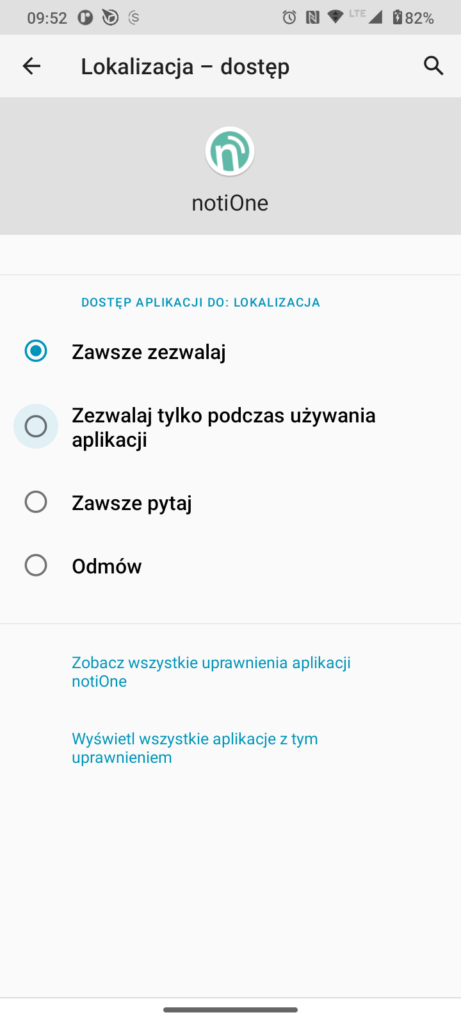
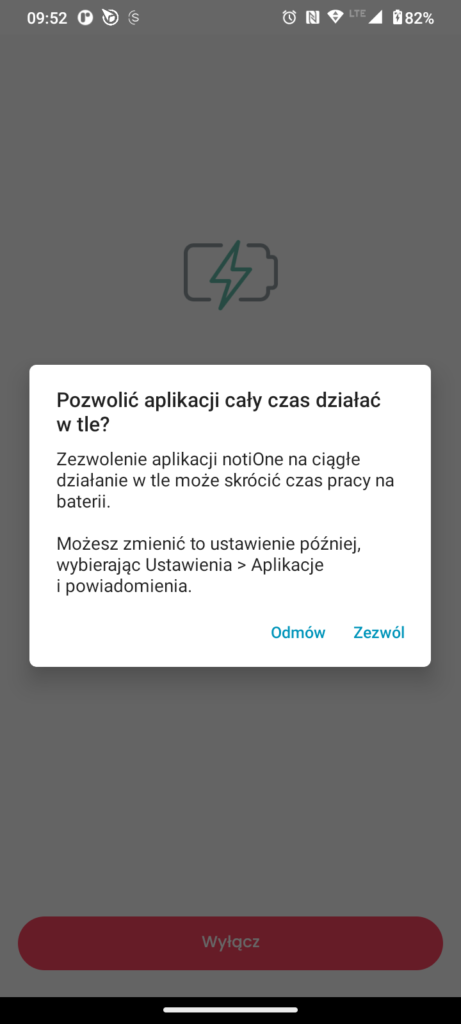
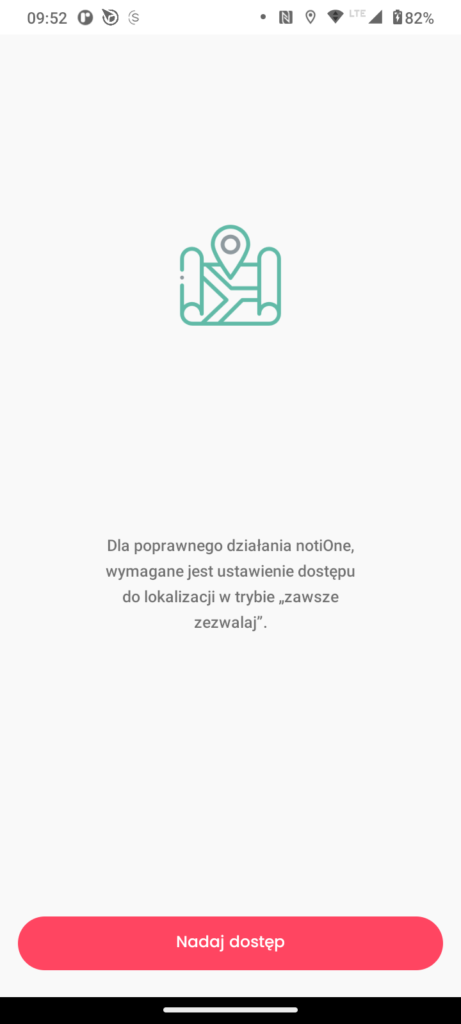
The notiOne app will ask you to allow location access all the time (Android 10 and newer) and to display notifications on the home screen, which will keep you informed about your device’s battery level. If you want to keep the connection running without interruptions, we recommend turning off the battery-saver option. It may cause the location service or Bluetooth to switch off unexpectedly.
ATTENTION iOS users!
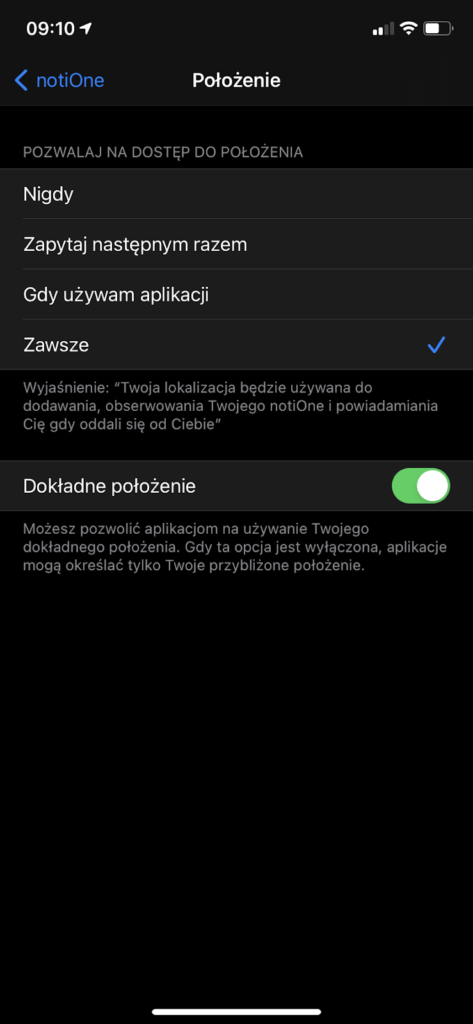
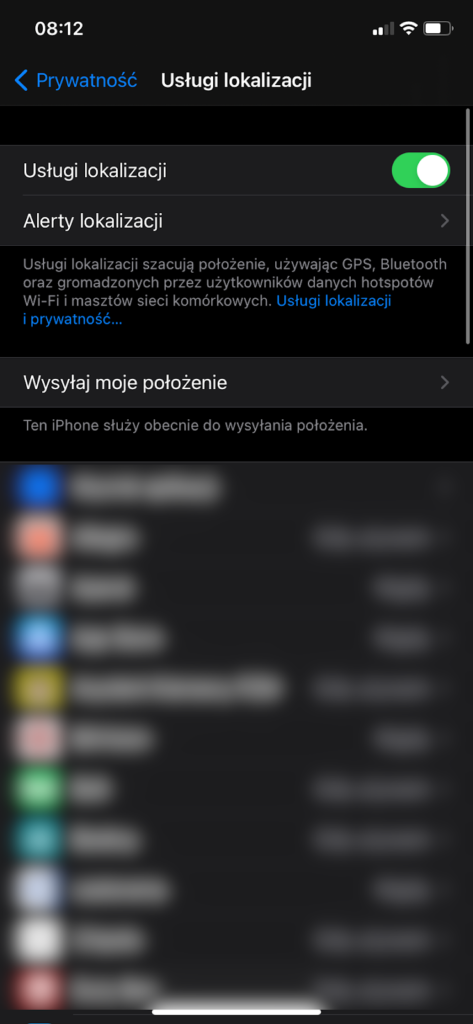
The app will ask whether you allow access to your location. We recommend selecting Always. If you want your location to be determined precisely, go to Settings>Privacy>Location Services>notiOne and switch on the Precise Location toggle. On iOS 13, the app has to ask for permission to access Bluetooth. To change the Bluetooth permissions, go to Settings > Privacy > Bluetooth.
This will guarantee that the app works correctly.
notiOne tracker – how to add a device in the app?
After logging in to the app as a new user, you’ll see the List tab in the Home panel. At the bottom of the page, just above the Home, Shop, About and Settings panels, there’s a large, round, red button with a plus sign in the middle. Use it to add the devices or phones you want to appear on the map. Once you tap the button, the device-adding wizard will help you set up your tracker correctly.
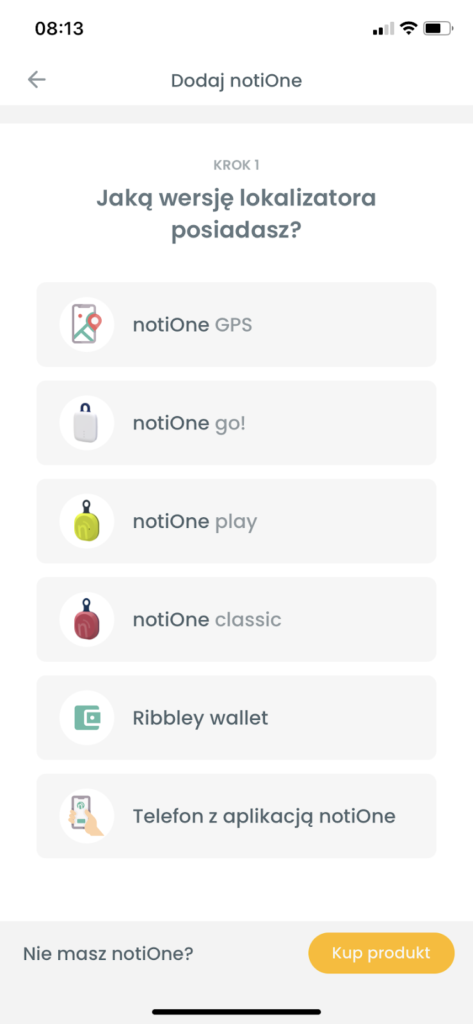
notiOne go!, notiOne PLAY, notiOne classic and Ribbley wallet tracking devices
Once the device has been added correctly, you can tap it in the List tab to follow its position on the map. In addition, by tapping the three dots in the top right corner, you can edit its name, photo and the message for the finder, check the device’s battery level and share its location with another notiOne app user.
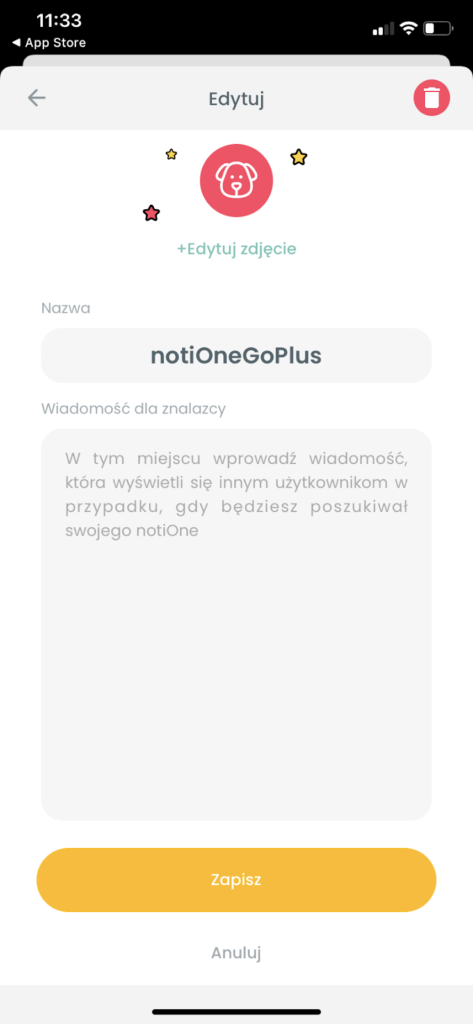
notiOne GPS and notiOne GPS PLUS trackers
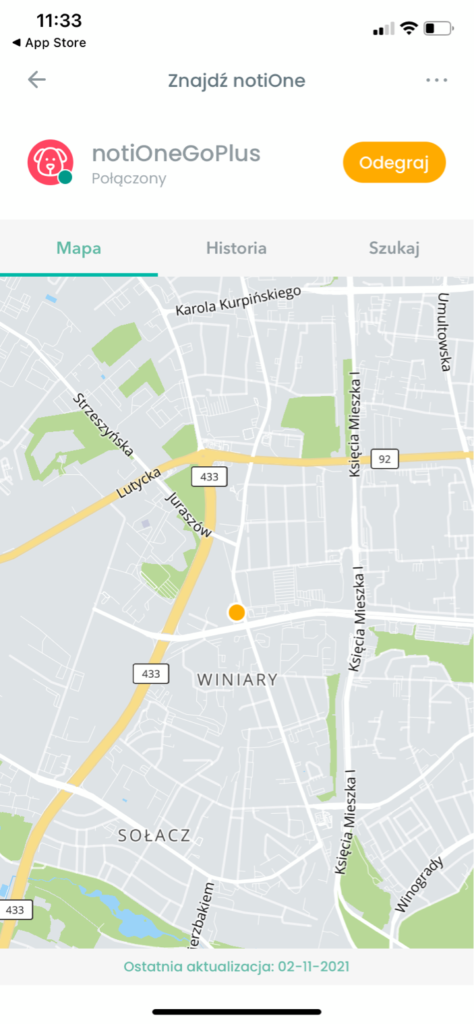
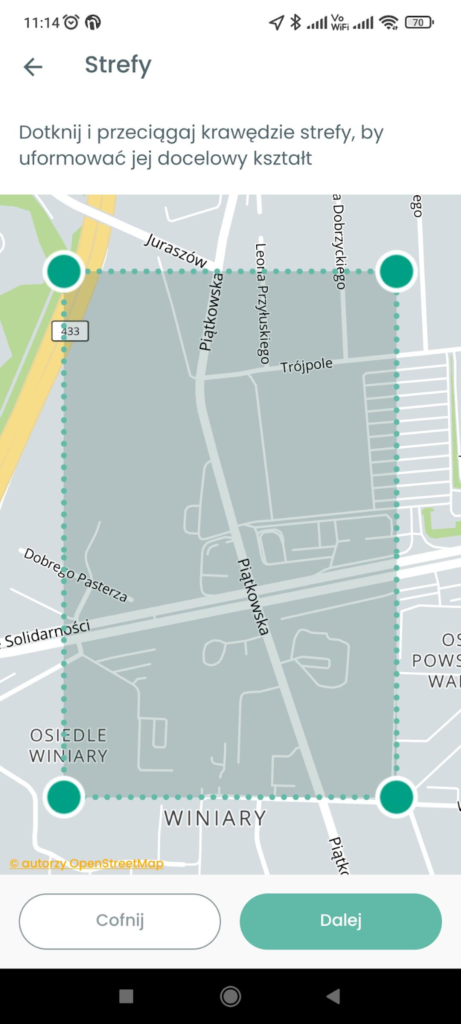
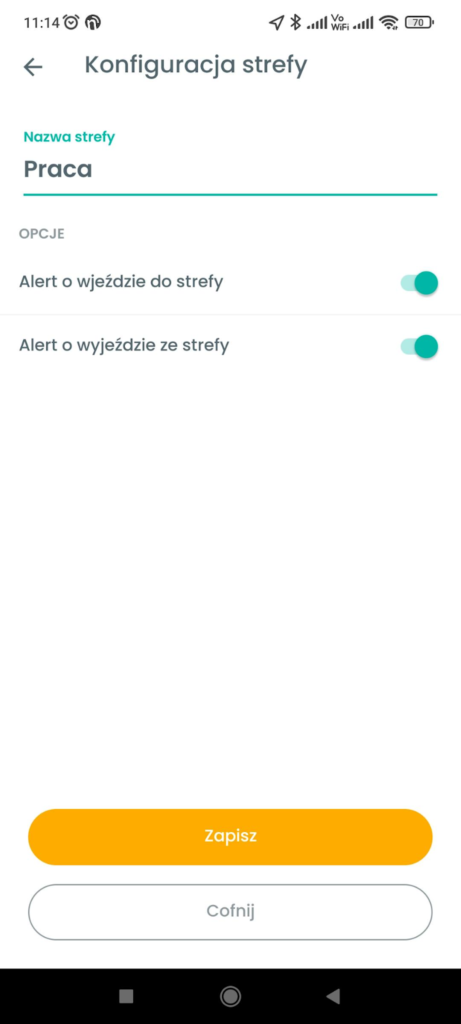
After adding a GPS device, select it in the List tab to see its location on the map. By tapping the three dots in the top right corner you can, among other things, edit the tracker’s name and photo, check the device’s battery level, set up a zone (Android) or share its location with another notiOne app user. A correctly configured device should work flawlessly.
Configuring notiOne GPS PLUS
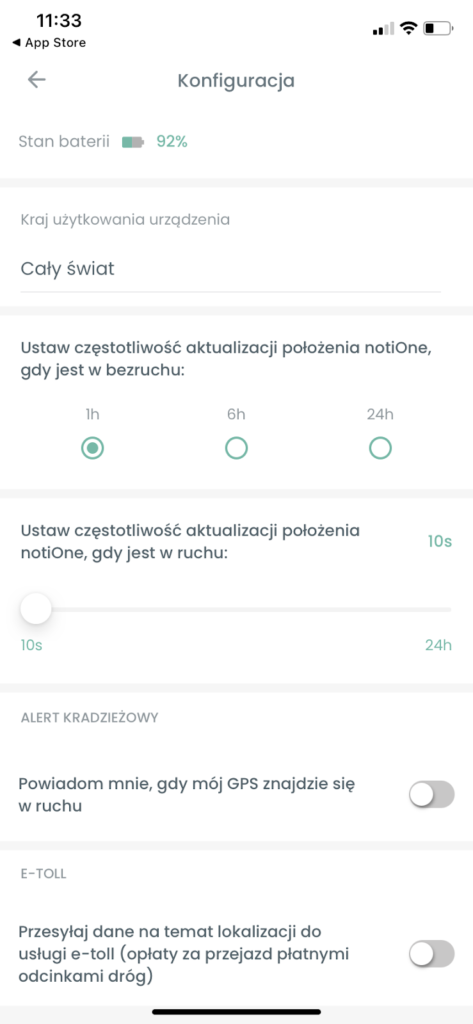
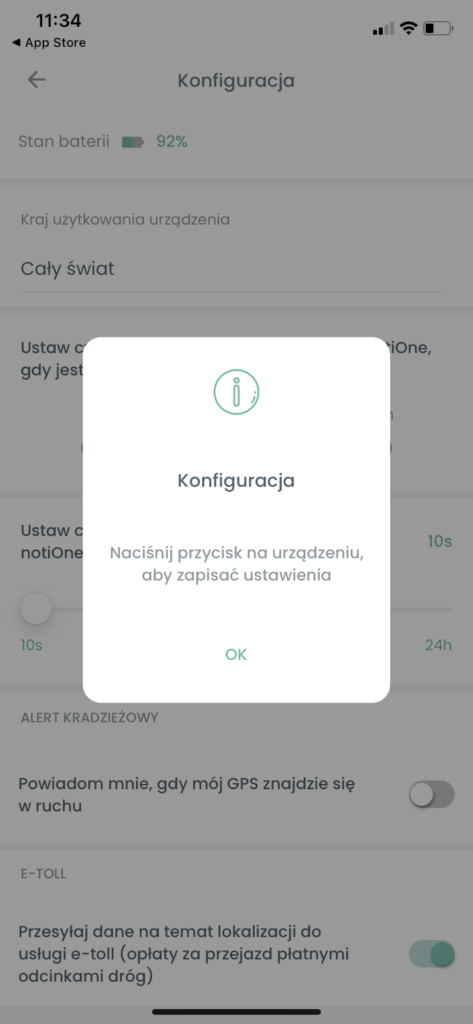
When you select your GPS device in the List tab, the app automatically takes you to the map. To configure the PLUS version of the device, tap the three dots in the top right corner and select Configuration. A configuration page will appear, where you can tailor the device to your needs.
Setting up the e-TOLL system for notiOne GPS PLUS
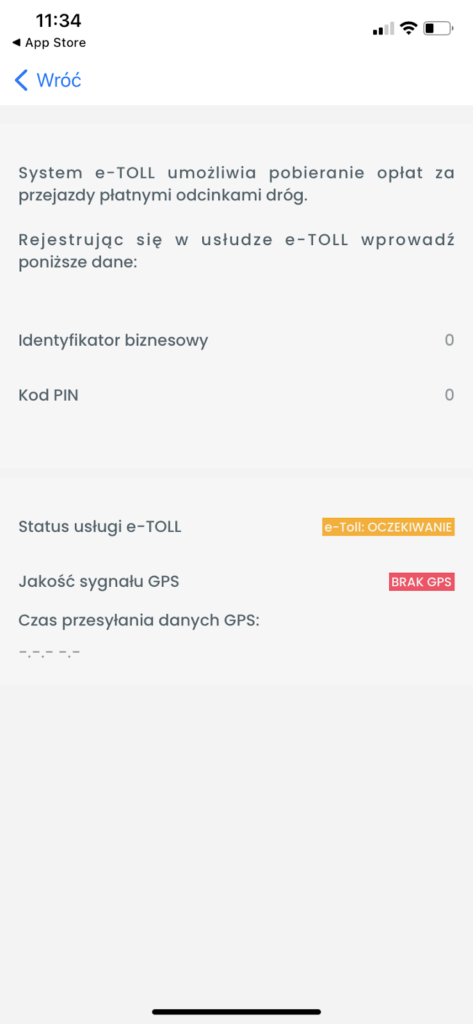
In the menu, select Configuration and switch on the e-TOLL toggle (e-TOLL is Poland’s electronic toll system). The app will generate a business ID and a PIN code for you, which you’ll find in the three-dot menu under e-TOLL. Now you can easily register at etoll.gov.pl using the details the notiOne app has generated for you.
Want to know more about e-TOLL? Check out our post What is the e-TOLL system and how does it work?
The notiOne app has been installed successfully
Congratulations! Your notiOne app is working correctly. You can now track the location of your device attached to the items or people that matter to you. 🙂
Follow the location history and find your belongings with an audible signal, thanks to the notiOne community.